![froxy-logo.svg]](https://help.froxy.com/hubfs/froxy-logo.svg)
Dolphin Cloud is a platform for automating Facebook ad campaigns across multiple accounts. It allows you to manage dozens, or even thousands, of ad accounts from a single interface via API connections.
However, this system requires proxies. Without a proxy, multiple ad accounts will appear to come from the same IP address, which can quickly lead to blocking. Froxy proxies assign a unique IP address to each account, making each account appear to operate from a distinct location. This helps maintain campaign stability and reduces the risk of account restrictions by minimizing suspicious activity.
This guide covers the step-by-step setup of a Froxy proxy using Dolphin Cloud's proxy manager.
How to Add a Proxy to Dolphin Cloud?
Dolphin Cloud lets you centrally manage proxy ports — add, delete, test connections, and share with team members.
To add a Froxy proxy to Dolphin Cloud, follow these steps:
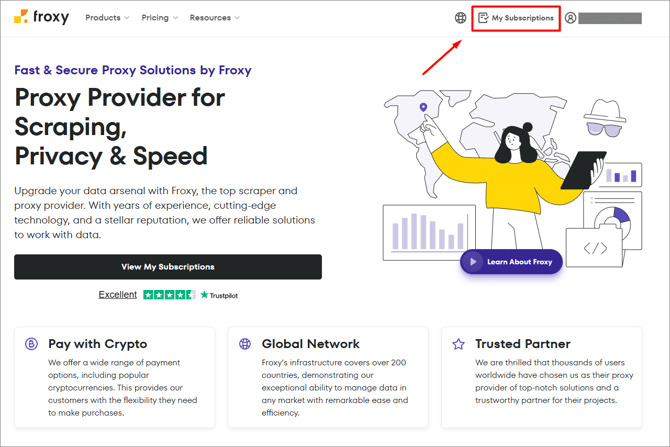
- Log in to your Froxy account → Subscriptions.
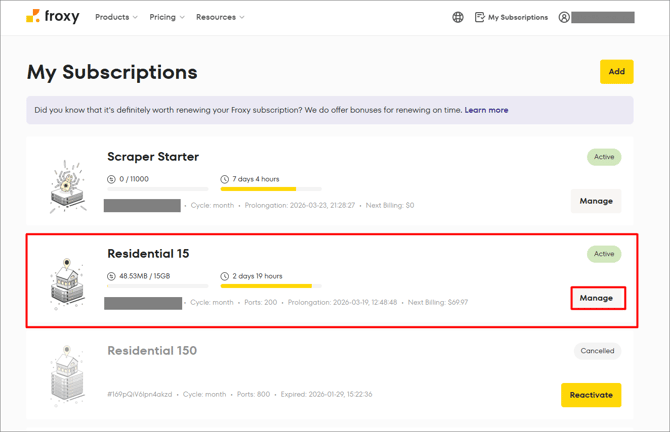
- Click Manage to go to Settings for your active subscription.
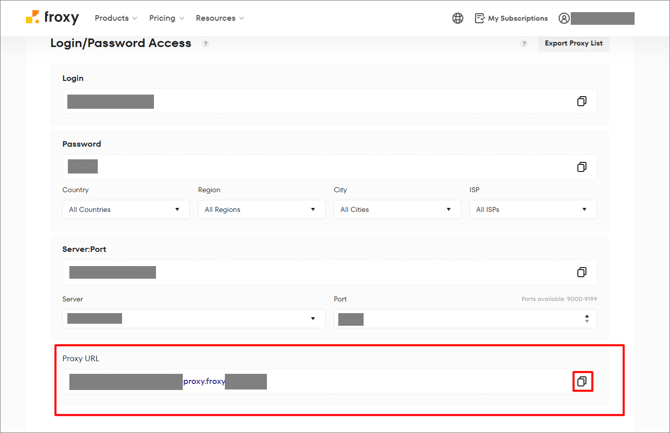
- In the subscription settings, copy the Proxy URL.
- Open your Dolphin Cloud account.
- Click Proxies → ADD PROXY.
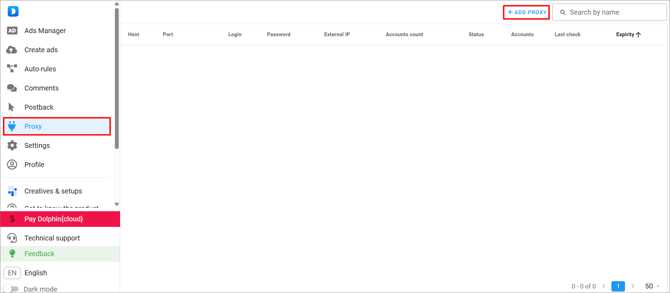
- Paste the URL into the form exactly as is, and Dolphin Cloud will automatically assign the server, port, username, password, and other information. Finally, you can add the proxy name and a link to change the IP after a colon.
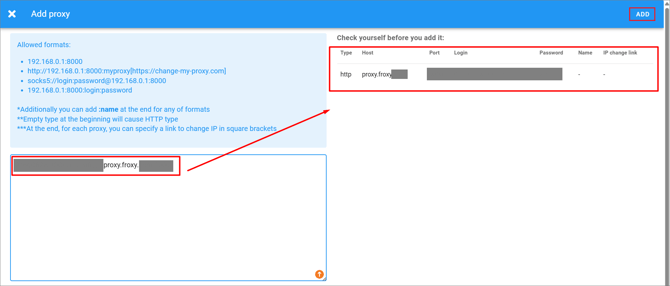
You can add any number of proxies at once as a list. - After adding a port, it will appear in the list and will need to be tested for functionality. To do this, select the proxy port with a check mark → Check.
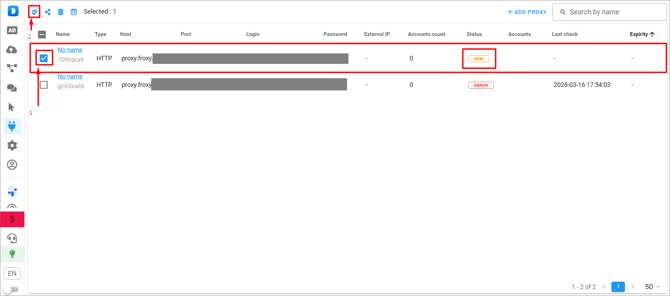
- This will change the status from "New" to "Active". You can check any number of connections in one click.
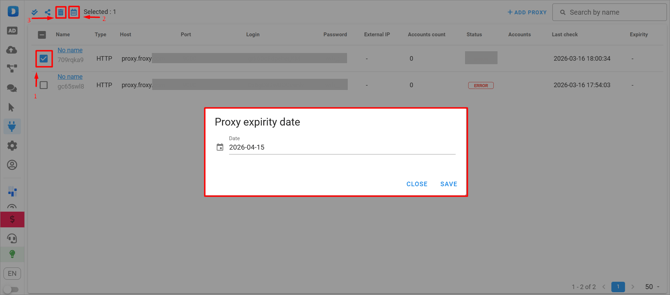
Using the manager, you can not only check proxies but also share them with other team members and set an expiration date. - Once the expiration date has passed, the system will indicate that the proxy needs to be replaced! In this case, the replacement must be made immediately, an expired port will result in a ban on your advertising account.
How to Add Proxies to Ad Accounts in Dolphin Cloud?
Establishing a proxy is a necessary step for the stable operation of your advertising accounts. Dolphin Cloud makes this process as simple as possible: you can assign proxies in one click, apply them to a group of accounts at once, or add them manually as needed.
How to Add Proxies via Ads Manager?
To add proxies to your advertising accounts via Ads Manager, follow these steps:
-
Open the account manager.
- Select the desired account from the list of accounts in the following format: Name::Token::UserAgent::Proxy::Cookies account (e.g., d641 with legacy ports).
- Click the account name.
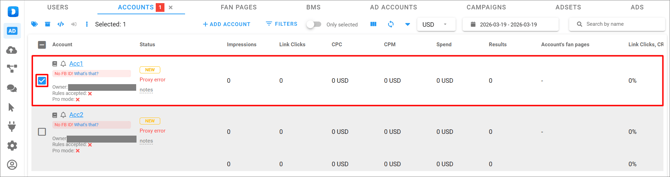
- From the list of available proxies, select the desired one (e.g., Froxy).
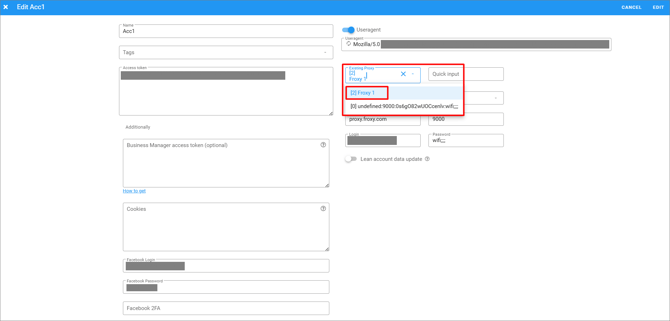
- Save your changes.
- After this, the Proxy Error will disappear. You can use trial proxy ports for testing.
- Proxies can be added to multiple accounts at once. To do this, select the accounts → click
 → select Change proxy.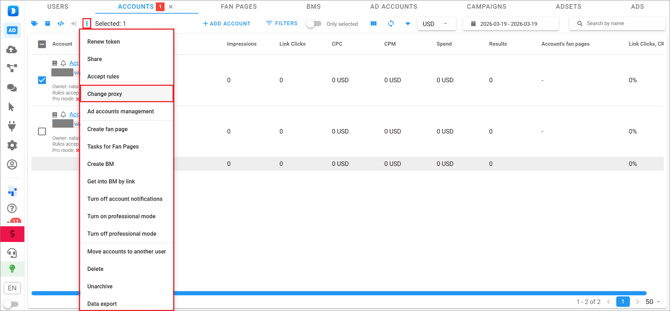
- From the list of available proxies, select the desired one (e.g., Froxy) → Save changes.
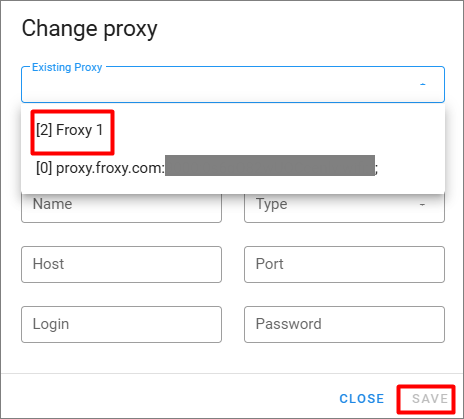
- After this mass addition, all accounts will be operational again and ready to upload ads.
- You can add a proxy connection without using the manager; instead, manually enter the port, hostname, username, and password for the connection.
You can test the proxy manager yourself using test ports.
How to Bulk Add Accounts with Proxies to Dolphin Cloud?
To add multiple proxy accounts to Dolphin Cloud, follow these steps:
-
Click ADD ACCOUNT.
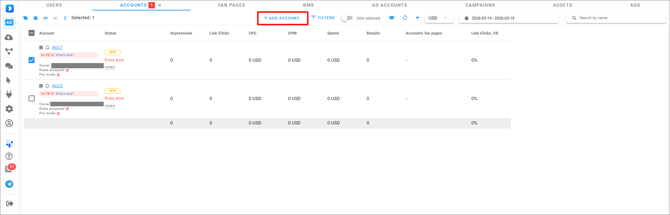
- Go to the BULK ADD tab.
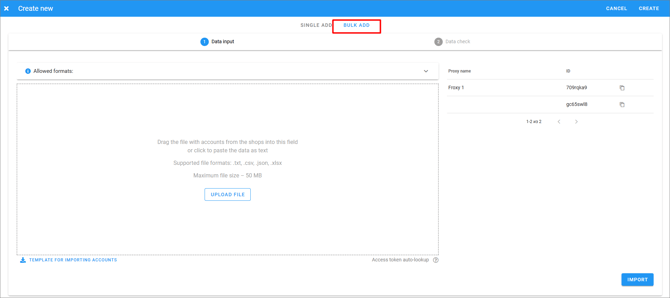
- Add a list of accounts in the following format:
Name::Token::UserAgent::Proxy::Cookies - After pasting, the system will automatically validate the data.

How to Reduce the Risk of Account Bans in Dolphin Cloud?
To avoid accounts getting banned, it's important not only to use proxies but also to manage them correctly. Sudden actions, mass launches, and identical settings can all raise suspicions on platforms. Below are key practices that help mitigate these risks.
1. Linking Payment Cards
- Don't link cards to multiple accounts simultaneously.
- Use sequential linking with a pause.
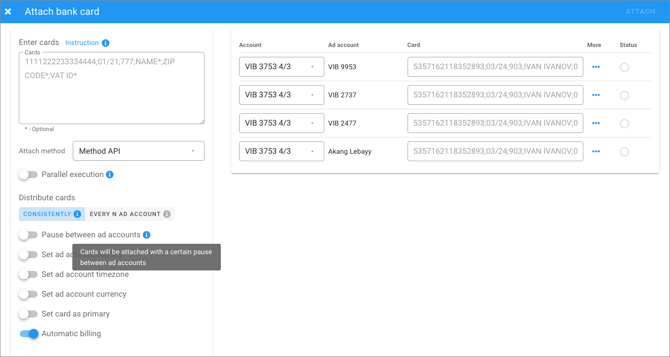
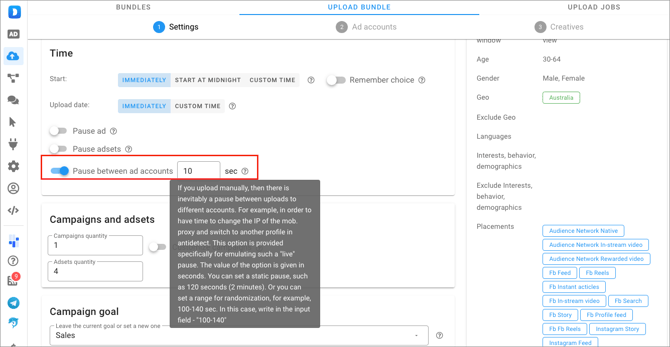
2. Launching Ads
- Don't launch the same campaigns on multiple accounts at once.
- Set up a delayed launch (for example, every 5-10 minutes).
3. Creative Rotation
- Use multiple creatives.
- Enable ad rotation.
- Change Fan Page names and avatars.
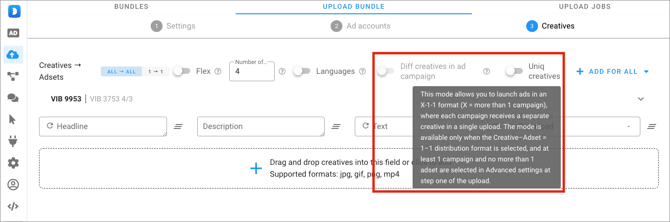
- You can use Spintax to generate variations.

4. Auto Rules
- Set up automatic budget management.
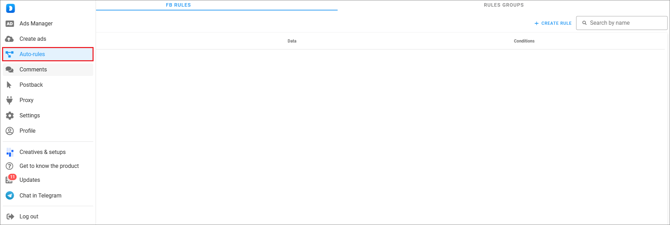
- Example:
- Increase the budget by 20% if the CPL is ≤ $4.
- Reduce your budget when CPL > $4.
SUMMARY:
To minimize account bans in Dolphin Cloud:
- Use high-quality proxies.
- Avoid trigger actions.
- Automate processes (launch, budgets, rotation).
How to Unban Accounts in Dolphin Cloud?
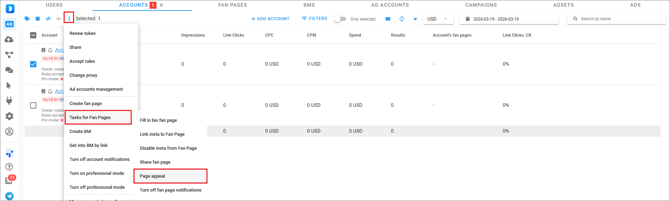
If an account is banned or frozen, it's not always critical—in most cases, it can be restored. Dolphin Cloud offers two main tools for this: appealing the Fan Page and completing the Risk Payment (RP).
Fan Page Appeal
- Select the accounts.
- Select Tasks for Fan Page → Page appeal.
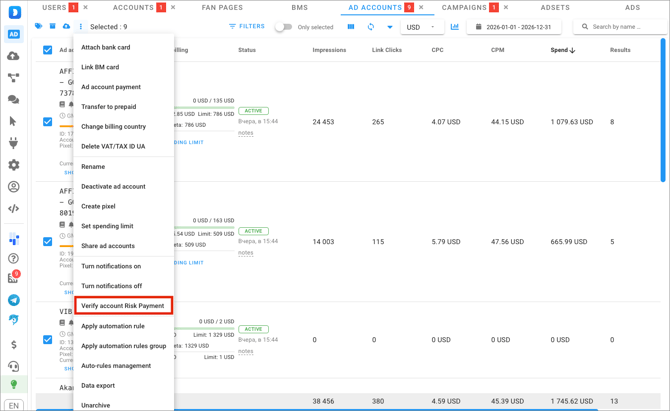
Risk Payment (RP)
- Go to the accounts tab.
- Select the desired accounts.
- Click the three dots.
- Select Verify account Risk Payment.
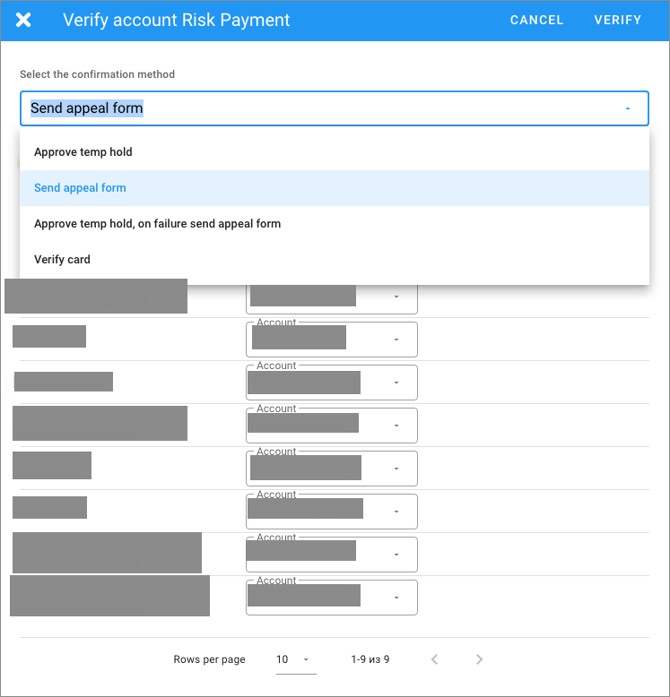
- Select the method for completing the Risk Payment (RP).
Conclusion
With Dolphin Cloud, Facebook ad automation simplifies account management and allows for scalability. Dolphin Cloud helps disguise automated traffic as real user activity, but stability directly depends on the quality of the proxy. Proper proxy configuration is crucial: products like Froxy reduce the risk of bans and ensure stable operation. For testing and production, you can use Froxy's proxy trial access and take advantage of new-user discounts. By using the platform's built-in tools and following basic rules, you can safely and effectively run ads of any size.
If you still have any questions about the operation of our service froxy.com, you can ask them in the online chat in the lower right corner of the site or contact support at support@froxy.com.