![froxy-logo.svg]](https://help.froxy.com/hubfs/froxy-logo.svg)
Nstbrowser is an anti-detect browser designed to create and manage multiple browser profiles with separate fingerprints, proxy settings, and browsing environments. By connecting Froxy proxies to Nstbrowser, you can assign a proxy to individual profiles and manage multiple online sessions from one interface. This guide shows you how to add a Froxy proxy, check the connection, and launch a configured profile.
To set up Froxy proxies for use with Nstbrowser, follow these steps:
- Open the Nstbrowser application.
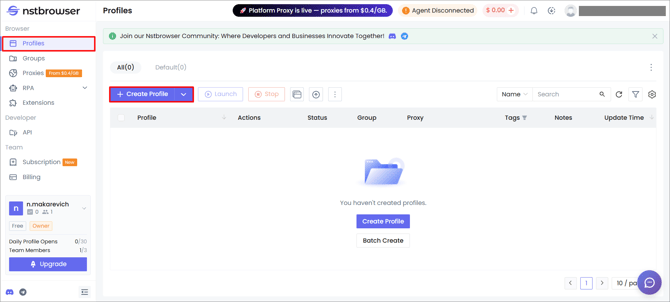
- Select Profiles → Create Profile:
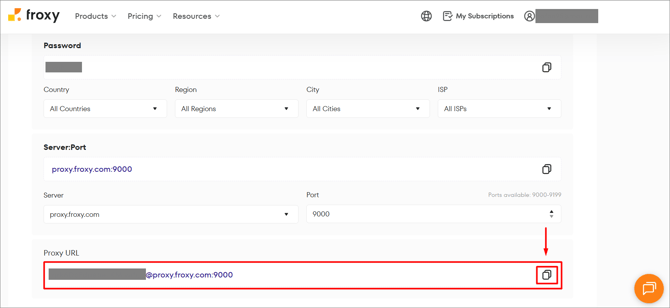
- Copy the Proxy URL from your subscription settings in the Froxy dashboard.
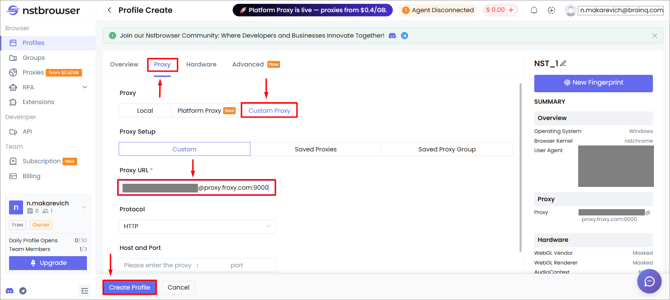
- Go to the Proxy tab:
- Select Custom under Proxy Setting.
- Select Custom under Proxy Type.
- Set the proxy type to HTTP → paste the Proxy URL from the Froxy dashboard.
- Click the Create Profile button (you can verify the proxy is working beforehand by clicking Check Proxy).
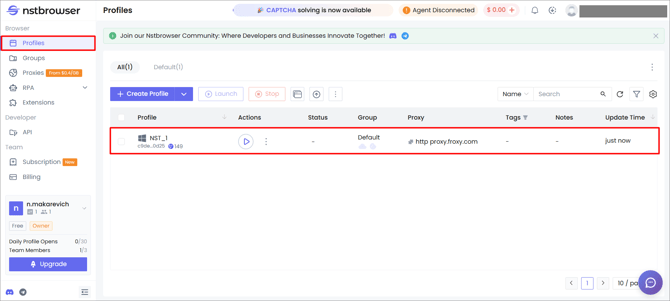
- Return to the Profiles tab and click the Start button next to the created profile (the configured proxy details will appear in your profile information):
- You can now use Froxy proxies with Nstbrowser!
If you still have any questions about the operation of our service froxy.com, you can ask them in the online chat in the lower right corner of the site or contact support at support@froxy.com.