![froxy-logo.svg]](https://help.froxy.com/hubfs/froxy-logo.svg)
Nullprint is an antidetect browser designed to manage multiple browser profiles, each with a separate digital fingerprint. Connecting Froxy proxies to Nullprint allows you to assign different IP addresses and geographic locations to individual profiles while automatically matching their time zones, languages, and geolocation settings. This setup is useful for multi-account management, web scraping, and other location-specific online activities.
Benefits of Integrating Froxy with Nullprint
- Froxy allows you to select an exit country, while Nullprint automatically adjusts the profile’s time zone, language, and geolocation to match that IP address. As a result, the IP address data and browser settings are perfectly aligned.
- A long rotation interval, combined with a "one proxy per profile" policy, ensures that each account uses its own stable IP address. Nullprint also flags any proxy used across multiple profiles simultaneously.
- HTTP proxies with username/password authentication are ready to use immediately—no additional software installation is required.
How to Connect Froxy Proxies to Nullprint
To connect a Froxy proxy to Nullprint, you must first create a filter in your Froxy dashboard. This allows you to configure geolocation, authentication methods, and IP rotation, and obtain the credentials needed to connect the proxy to your browser profile. Next, link the proxy to your Nullprint profile and verify the connection.
Creating a Filter in Froxy
To create a filter in Froxy, log in to your account at froxy.com.
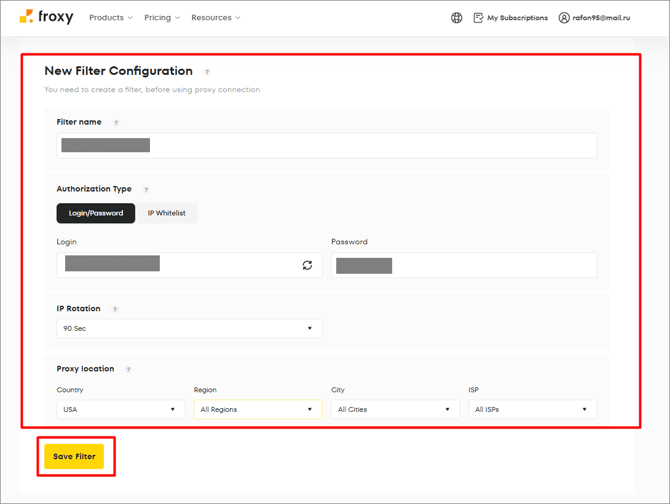
- In the Froxy dashboard, select your subscription plan and create a filter:
- Specify the country (we have selected the USA).
- Choose username/password authentication.
- Configure IP rotation. If you intend to remain logged into your accounts, set the rotation interval to the maximum duration or select the No Rotation option—this ensures that a permanent, static IP address is assigned to each profile.
- Open the filter settings and copy the Proxy URL (or the username, password, and server address with the port—for example: `fast.froxy.com:10000`).
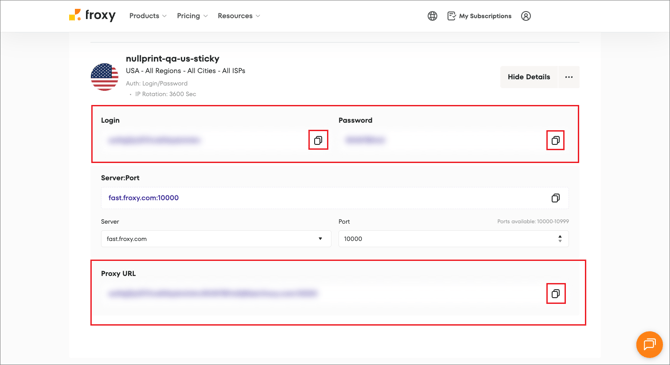
Tip: It may take 1–2 minutes for a new filter to activate, so it is best to wait a short while before testing.
Adding Proxies to the Nullprint Pool
To add proxies to the Nullprint pool, follow these steps:
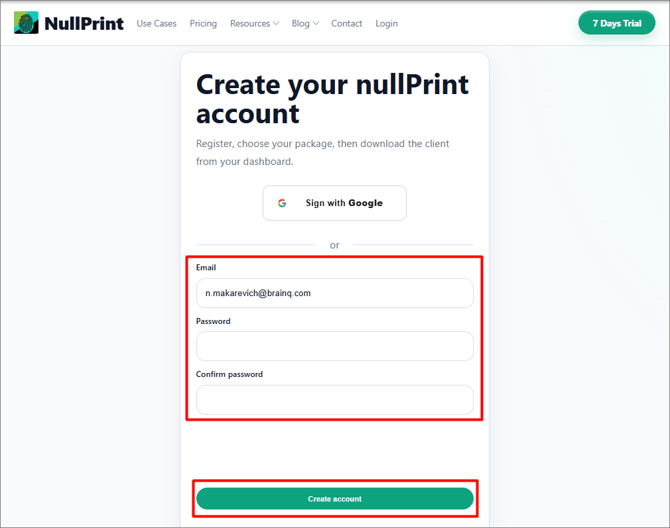
- Go to https://nullprint.net/ in your browser and create an account:
- Once registration is successful, you will receive a notification via email:
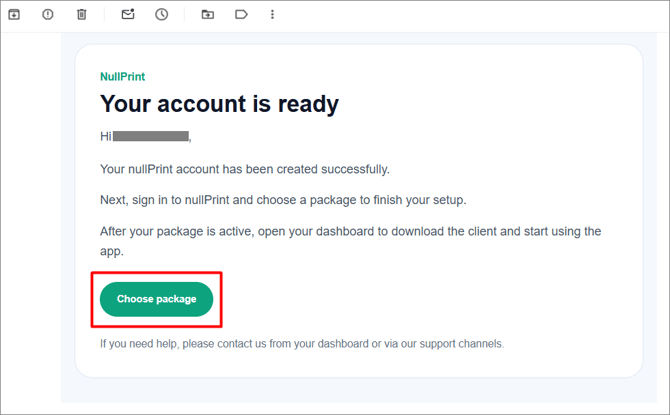
- To begin using Nullprint, purchase a subscription.
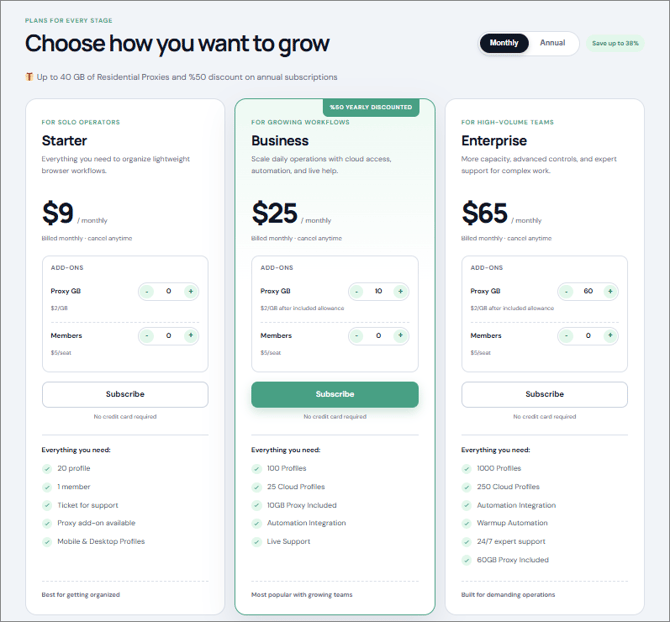
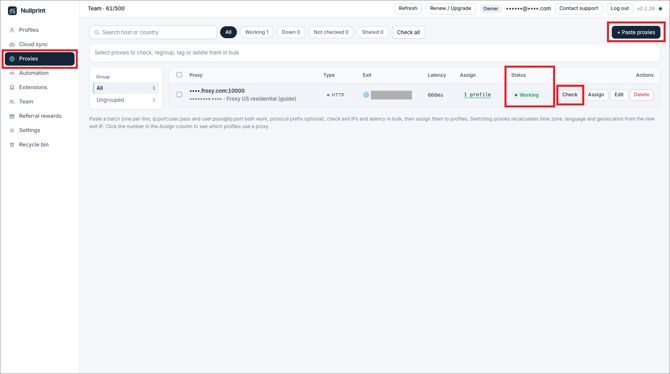
- In Nullprint, navigate to the Proxies section and click + Paste proxies.
- Enter your proxy details (in the format `login:password@fast.froxy.com:10000`) and click Check.
- Nullprint will display the exit IP address, latency, and status (e.g., "Working").
Linking a Proxy to a Nullprint Profile
To link a proxy to a Nullprint profile, either create a new profile or open an existing one.
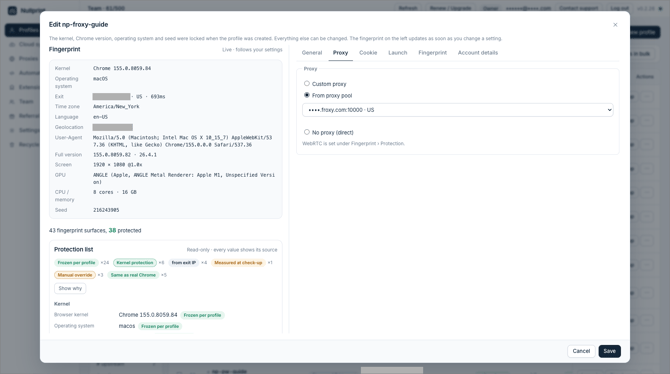
- Go to Edit → Proxy → From proxy pool and select your Froxy proxy.
- Nullprint detects the exit IP address and automatically configures the profile’s time zone, language, and geolocation to match it; these settings are displayed in the fingerprint panel on the left. Use one unique proxy for each profile.
Verifying the Proxy Connection and Launching a Nullprint Profile
- Before launching, click the Check-up button. The system will compare the exit IP address, time zone, language, and fingerprint settings — all of which should align with one another.
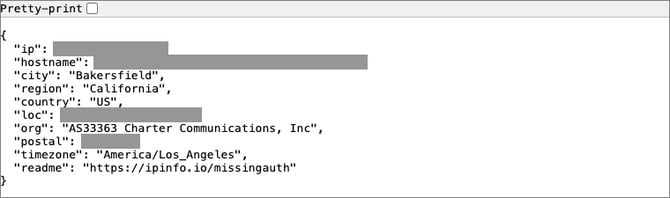
- Launch the profile and verify the data. To do this, open the profile and visit a website such as ipinfo.io. The exit IP address should match the Froxy residential IP for the country you selected.
If you still have any questions about the operation of our service froxy.com, you can ask them in the online chat in the lower right corner of the site or contact support at support@froxy.com.